This guide walks new users through the Paxform registration process — from selecting your organisation details to creating your account and enabling two-factor authentication. It’s designed to help publishers and administrators quickly set up their organisation on Paxform and start managing digital forms securely and efficiently.
Step 1: Select Organisation Details
Select your industry: Use the Search industry or select... field to find and choose the industry that best describes your organisation.
Click Next.

Select your organisation size: Choose the option that matches your organisation's staff size range: 1–99 staff, 100–999 staff, or Over 1000 staff.
Click Next.

Step 2: Create Your Organisation Account
Enter organisation name: Type the full name of your organisation.
Enter organisation subdomain: Choose a unique subdomain name. This will form the first part of your Paxform URL (for example, [yoursubdomain].paxform.com).
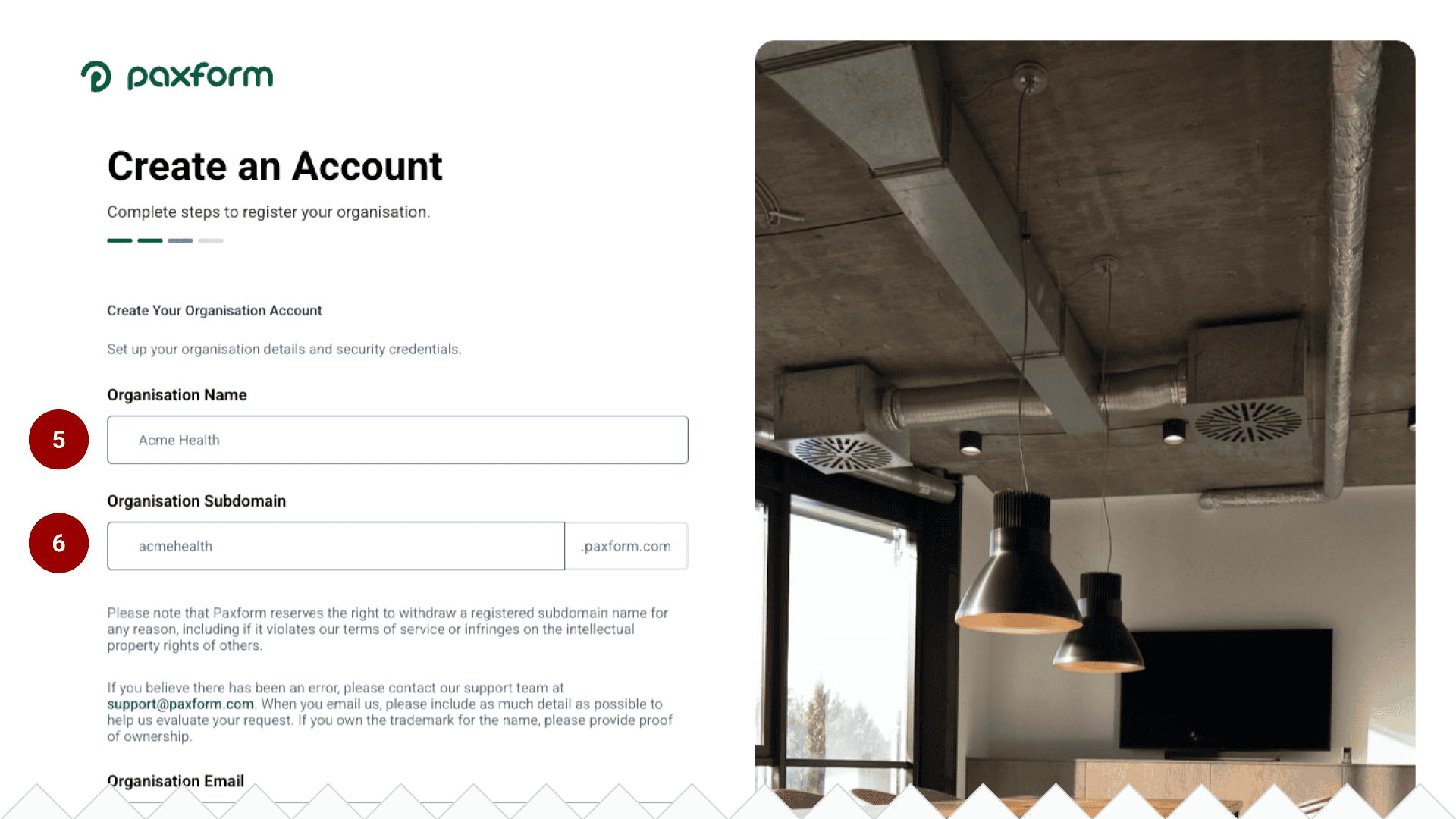
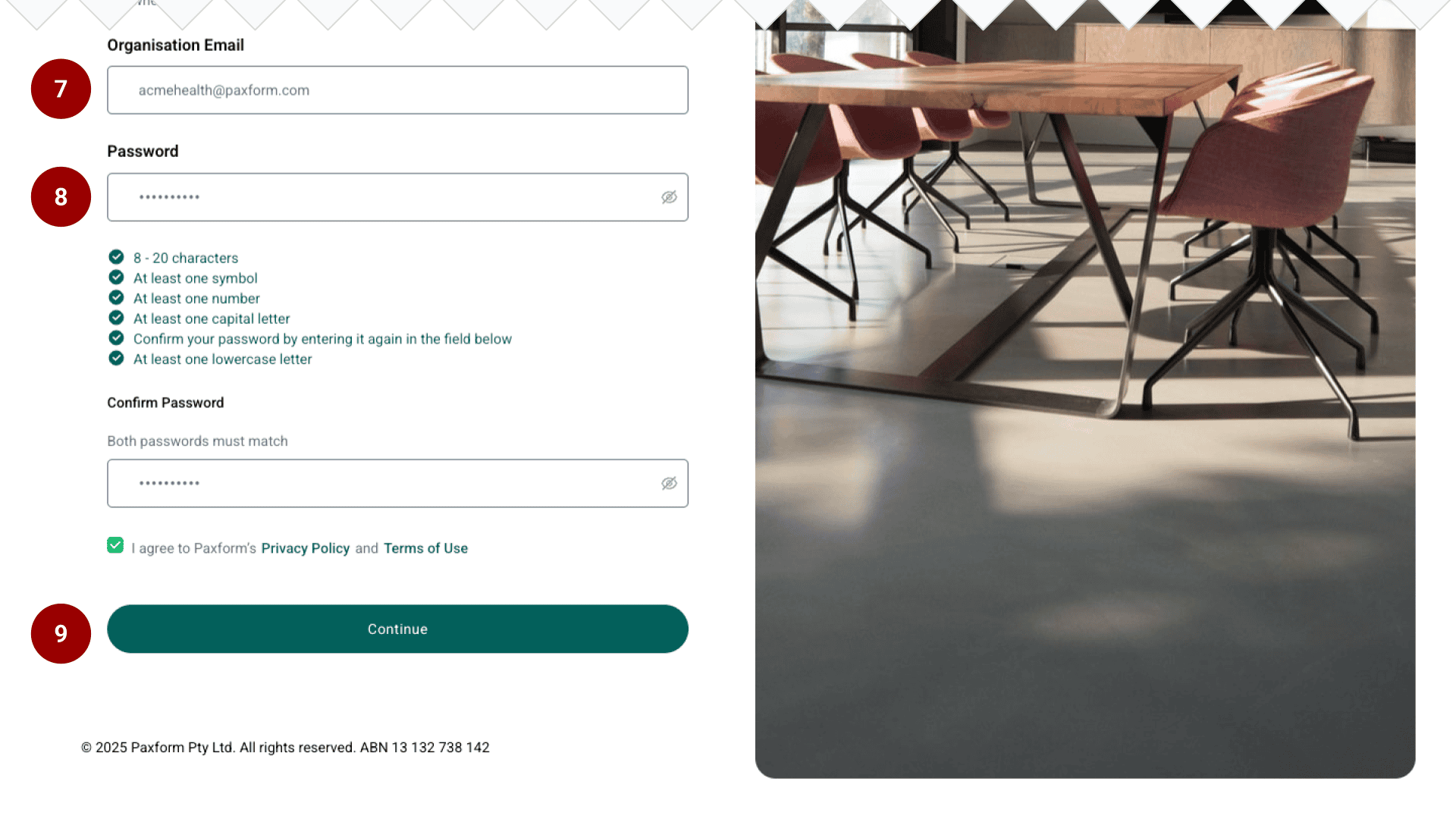
Enter organisation email: Provide the email address associated with your organisation.
Create a password: Set a strong password between 8–20 characters long.
Click Continue.
Step 3: Set Up Two-Factor Authentication
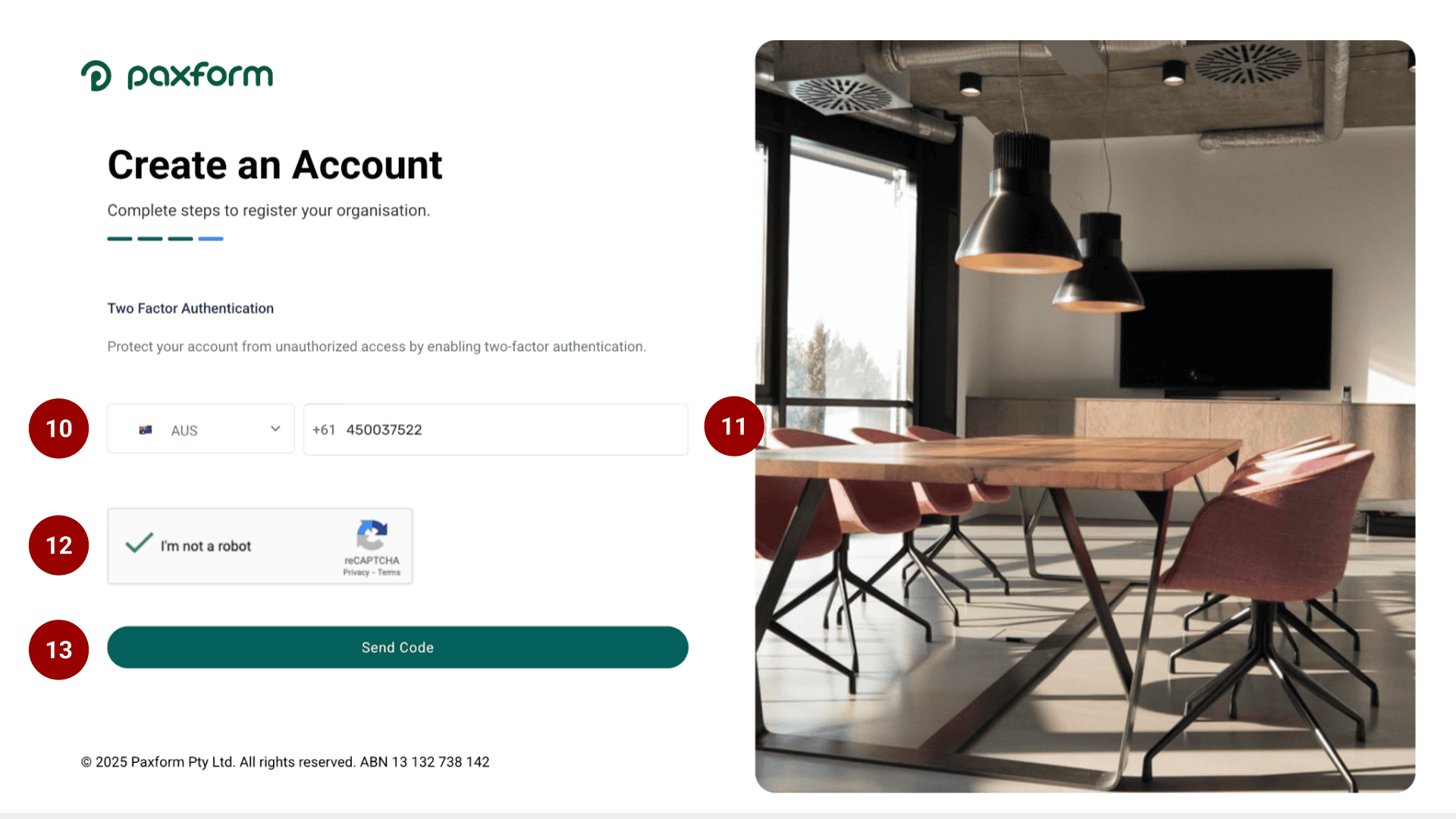
Select your country: Use the drop-down menu to choose your country. This helps route the verification code correctly.
Enter your contact number: Input a phone number or other contact method to receive your authentication code.
Complete reCAPTCHA: Check the I’m not a robot box to verify.
Click Send Code to receive the verification code (for example, via SMS).
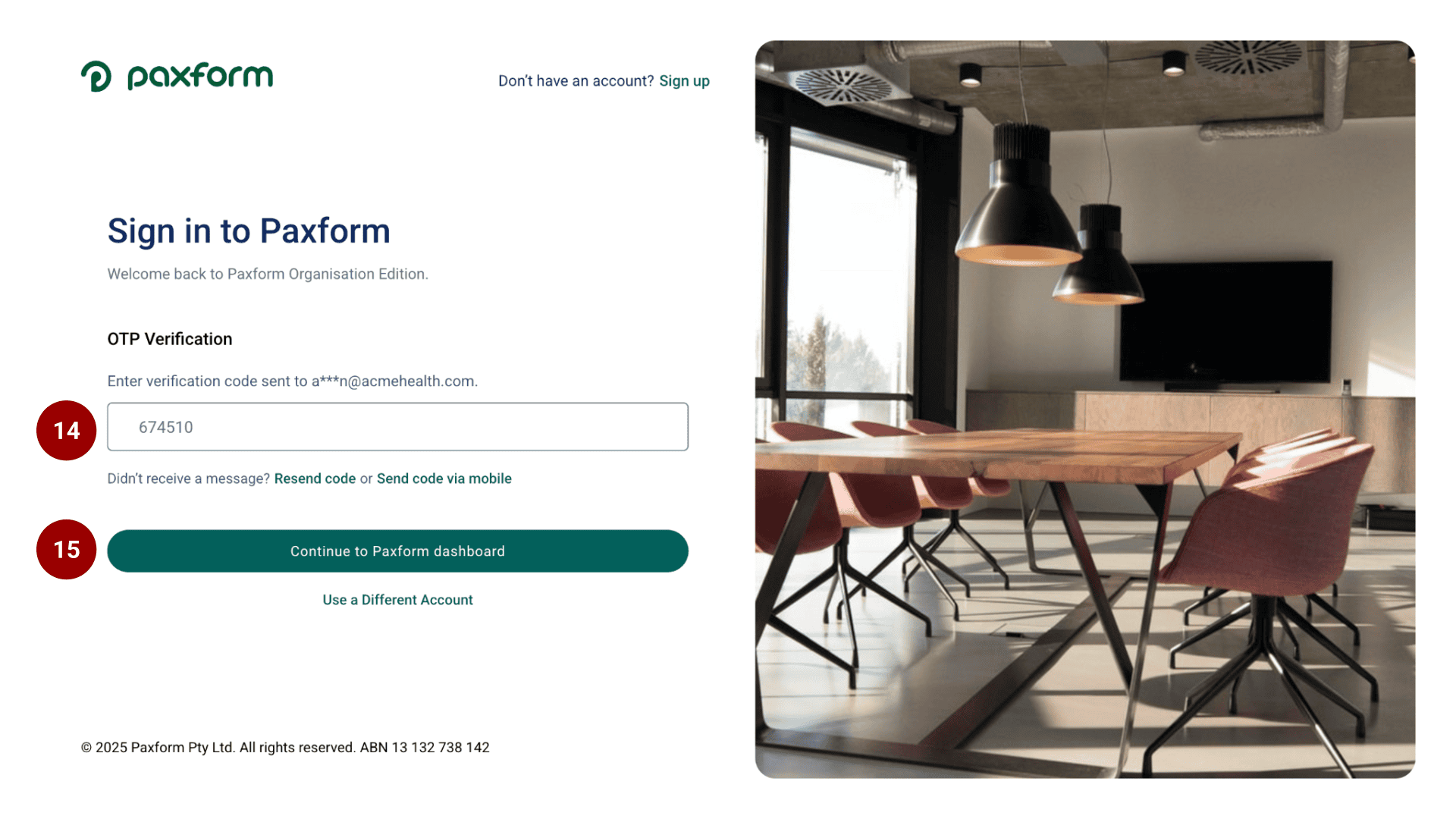
Enter the code into the corresponding field.
Click Continue to Paxform dashboard to complete your Sign in.