This guide shows how to reset your Paxform password by requesting a reset email, entering the verification code, and setting a new secure password.
Step 1: Initiate Password Reset
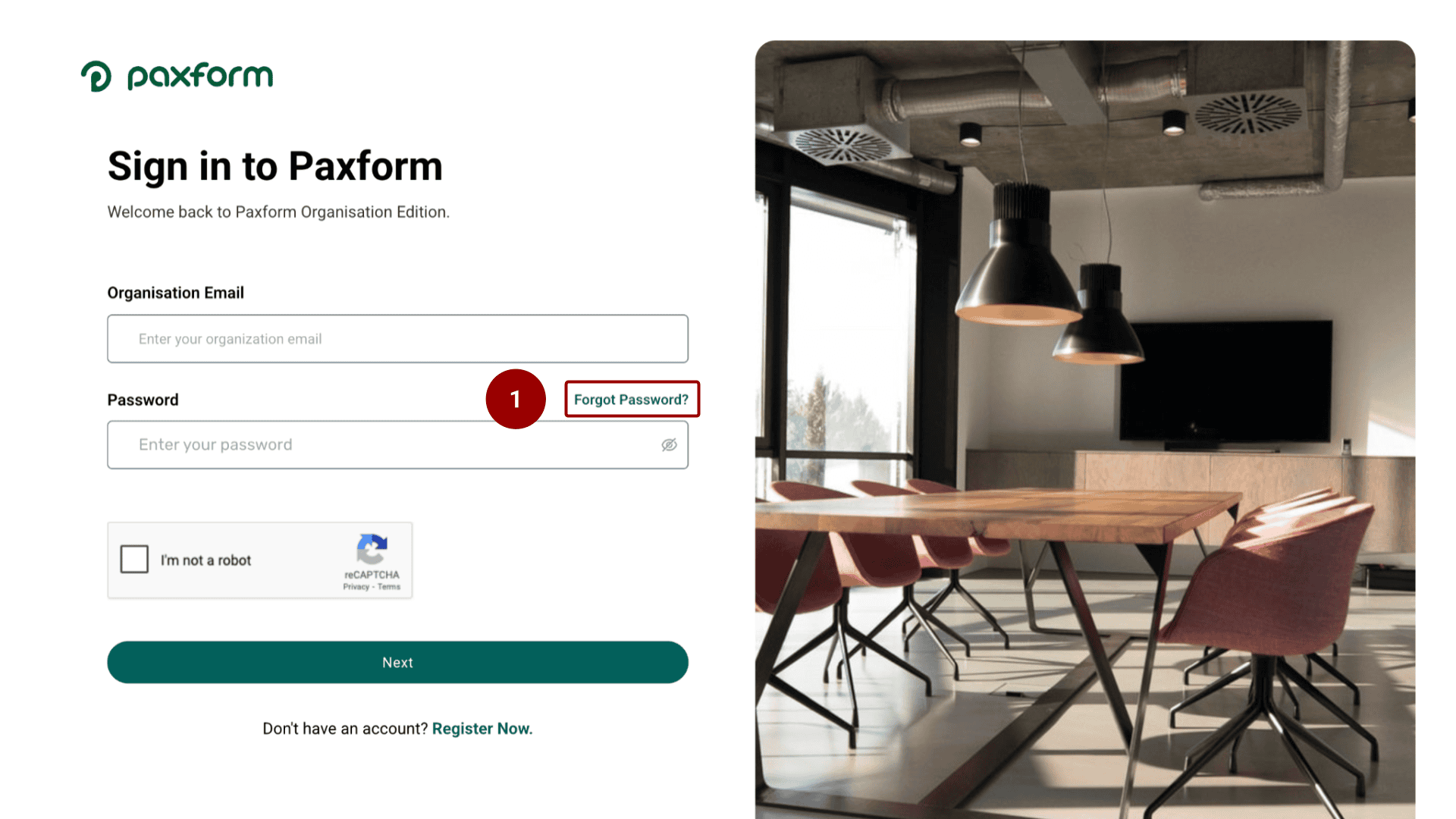
On the Paxform Sign-In page, click the Forgot Password? link located beneath the Password field.
Step 2: Request Reset Email
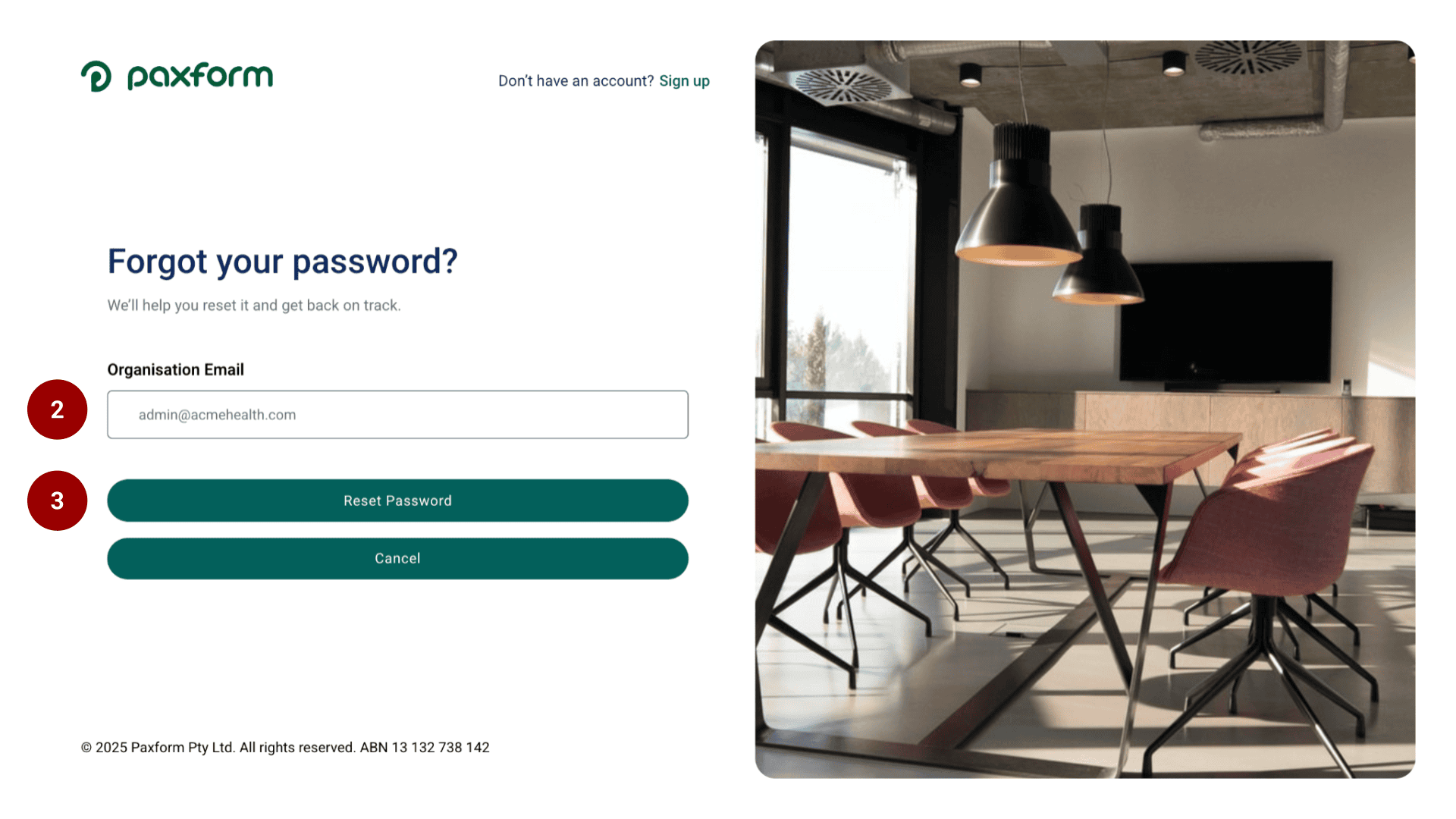
You will be taken to the "Forgot your password?" screen. Enter your Organisation Email address.
Click the Reset Password button.
Step 3: Enter Verification Code and Set Your New Password
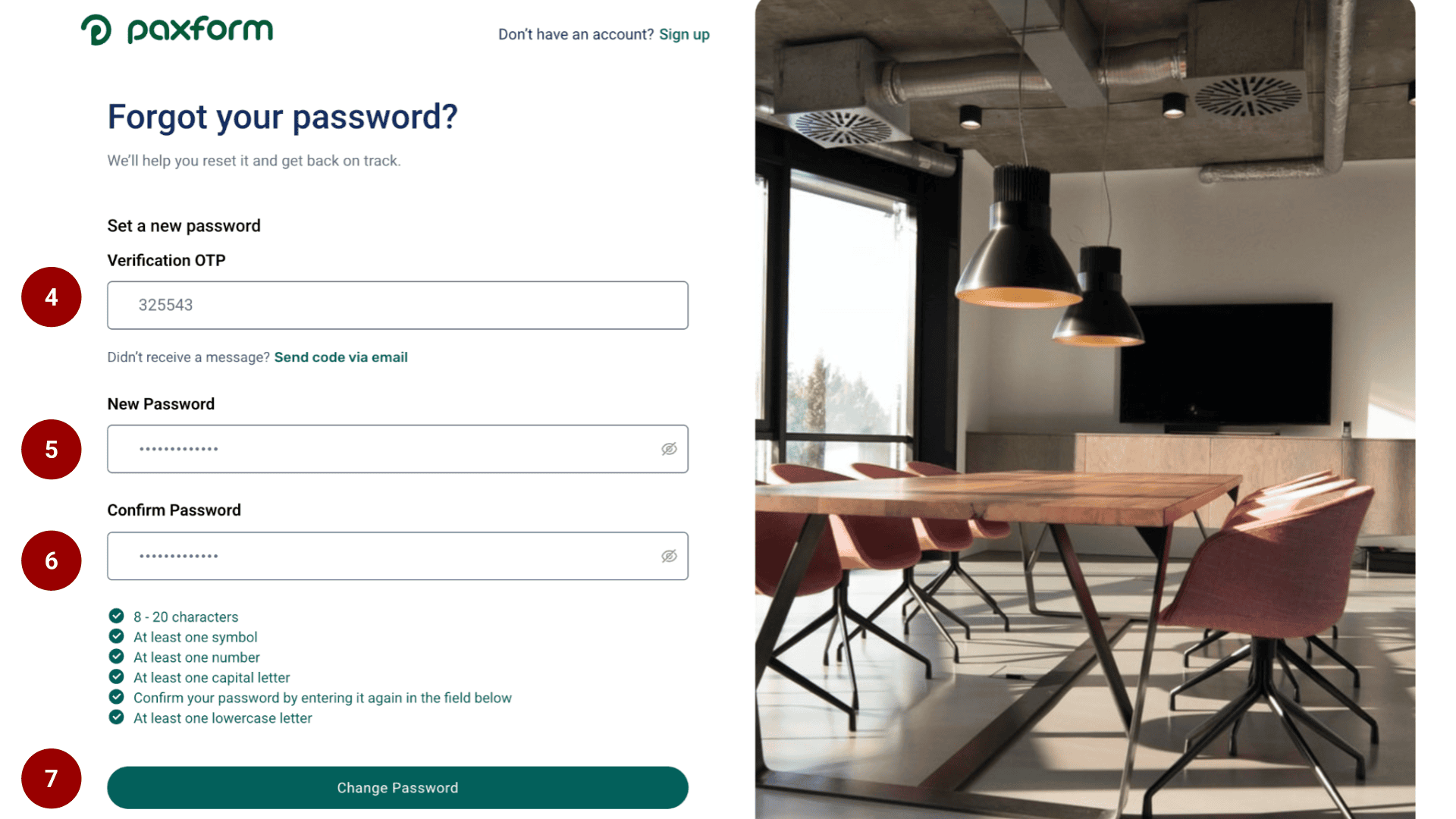
Enter the 6-digit Verification OTP you received via email into the corresponding field.
Enter your desired New Password.
Re-enter the new password in the Confirm Password field. Ensure your new password meets all the listed security requirements (length, symbol, number, case, etc.).
Click the Change Password button.