This guide outlines the steps to configure show/hide conditional logic in Paxform by using the Rule Builder to control the visibility of fields or groups based on user responses.
Step 1: Open the Rule Builder
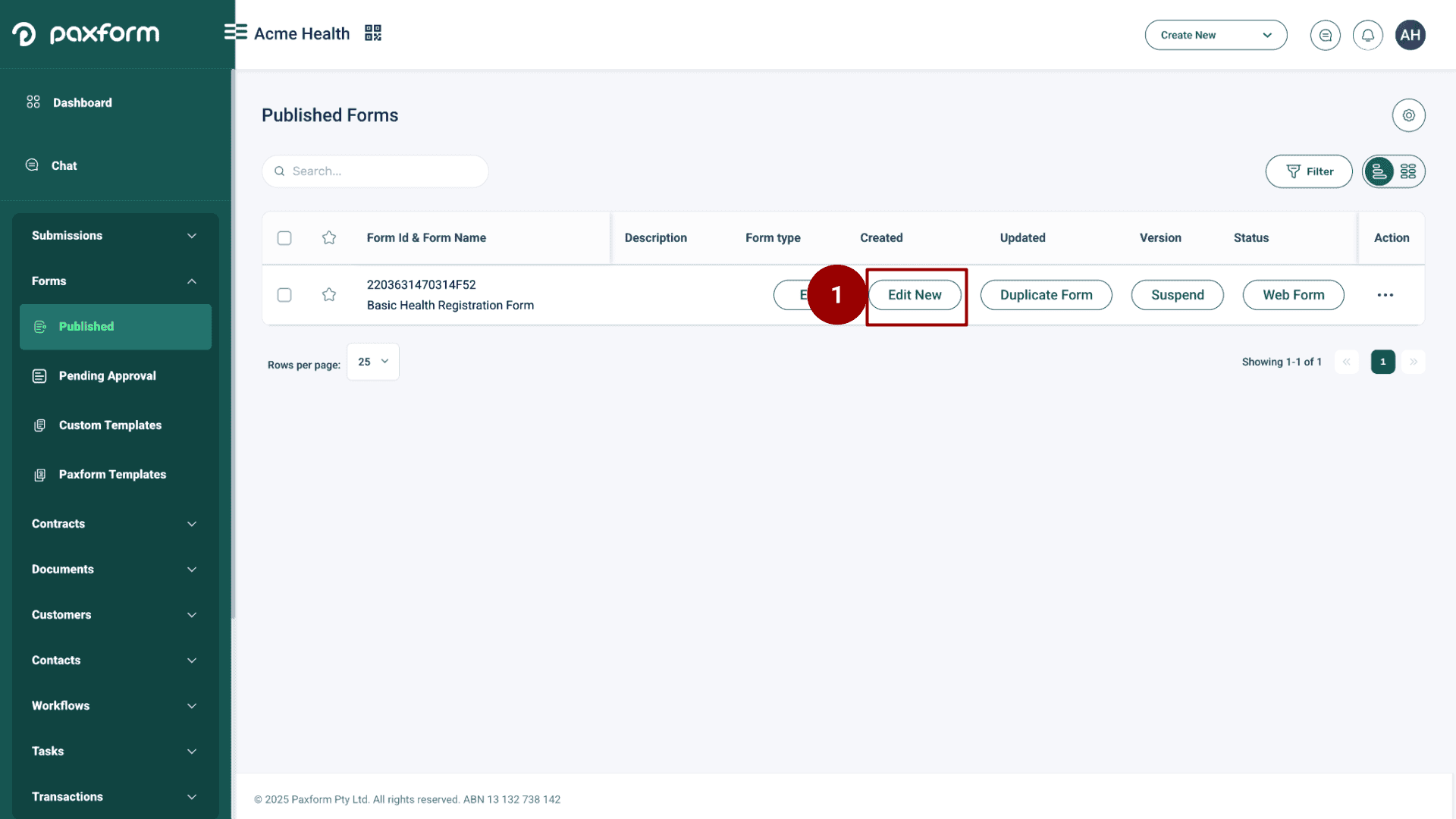
Go to Published forms, Select 'Edit new' option of the form you want to edit.
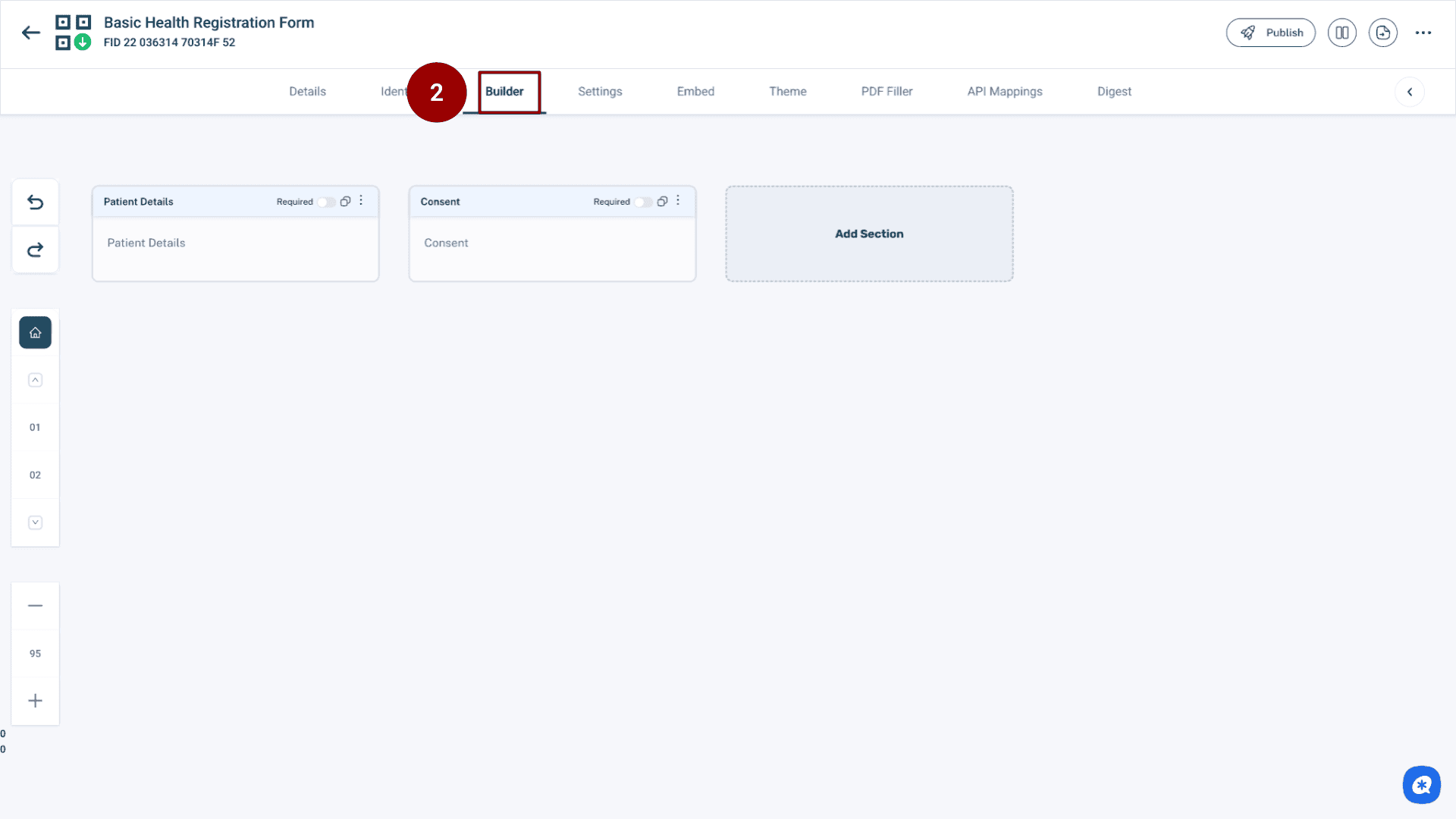
Go to Builder and open the Section you want.
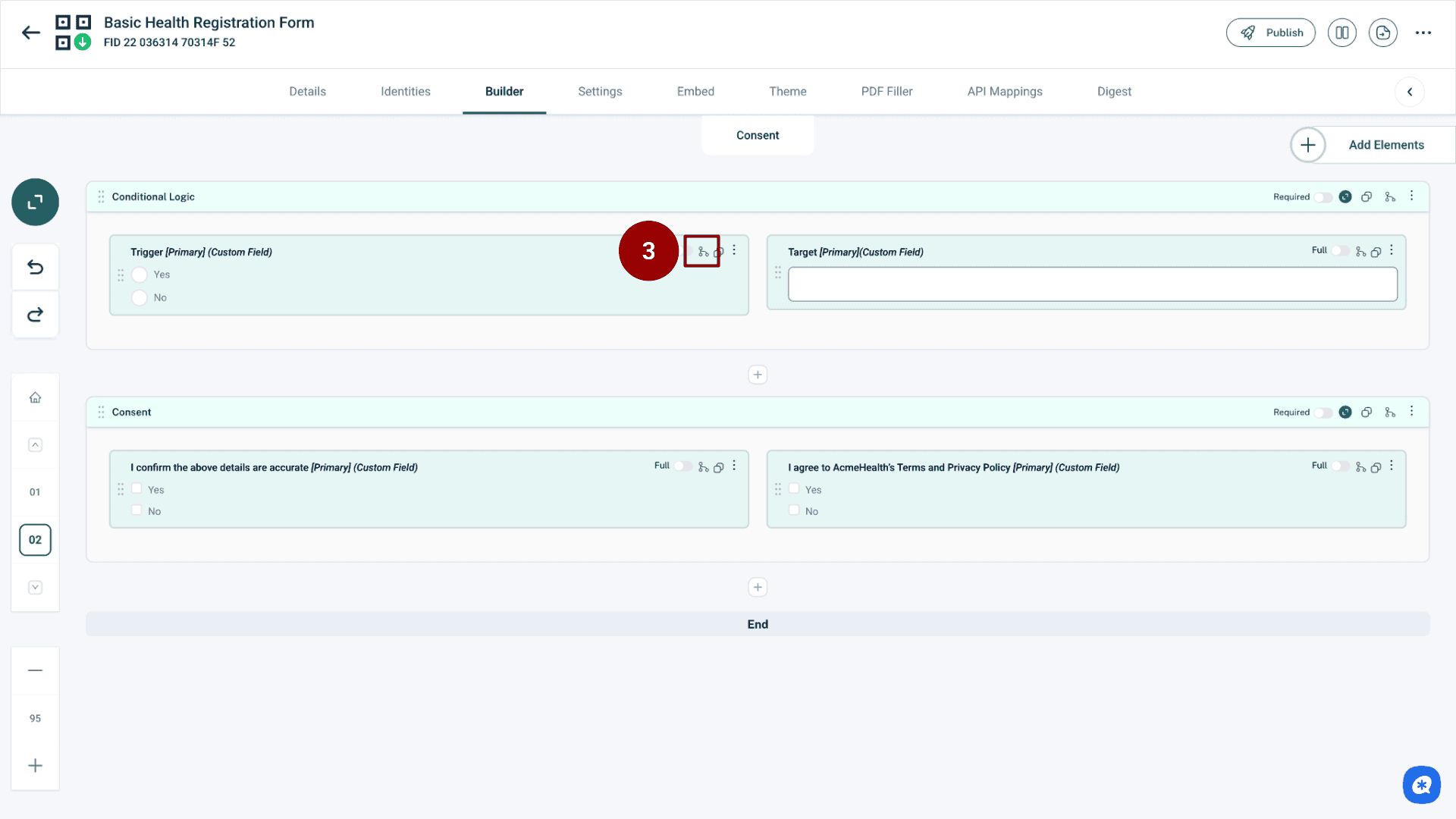
Hover any field and click the Hierarchy (nodes) icon.
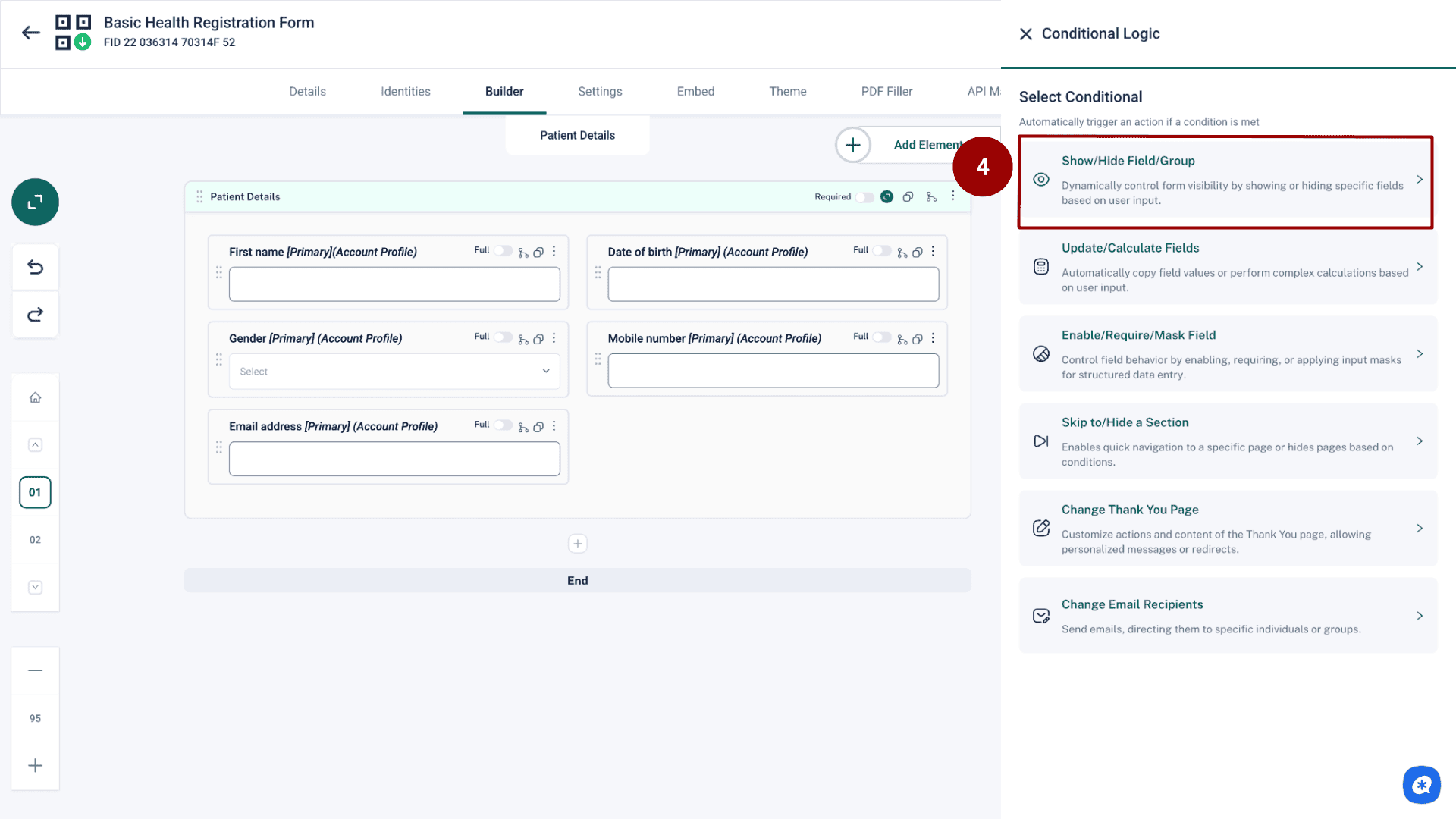
In the right panel choose Show/Hide Field/Group. The rule editor for show/hide logic will open.
Step 2: Choose what you’re controlling
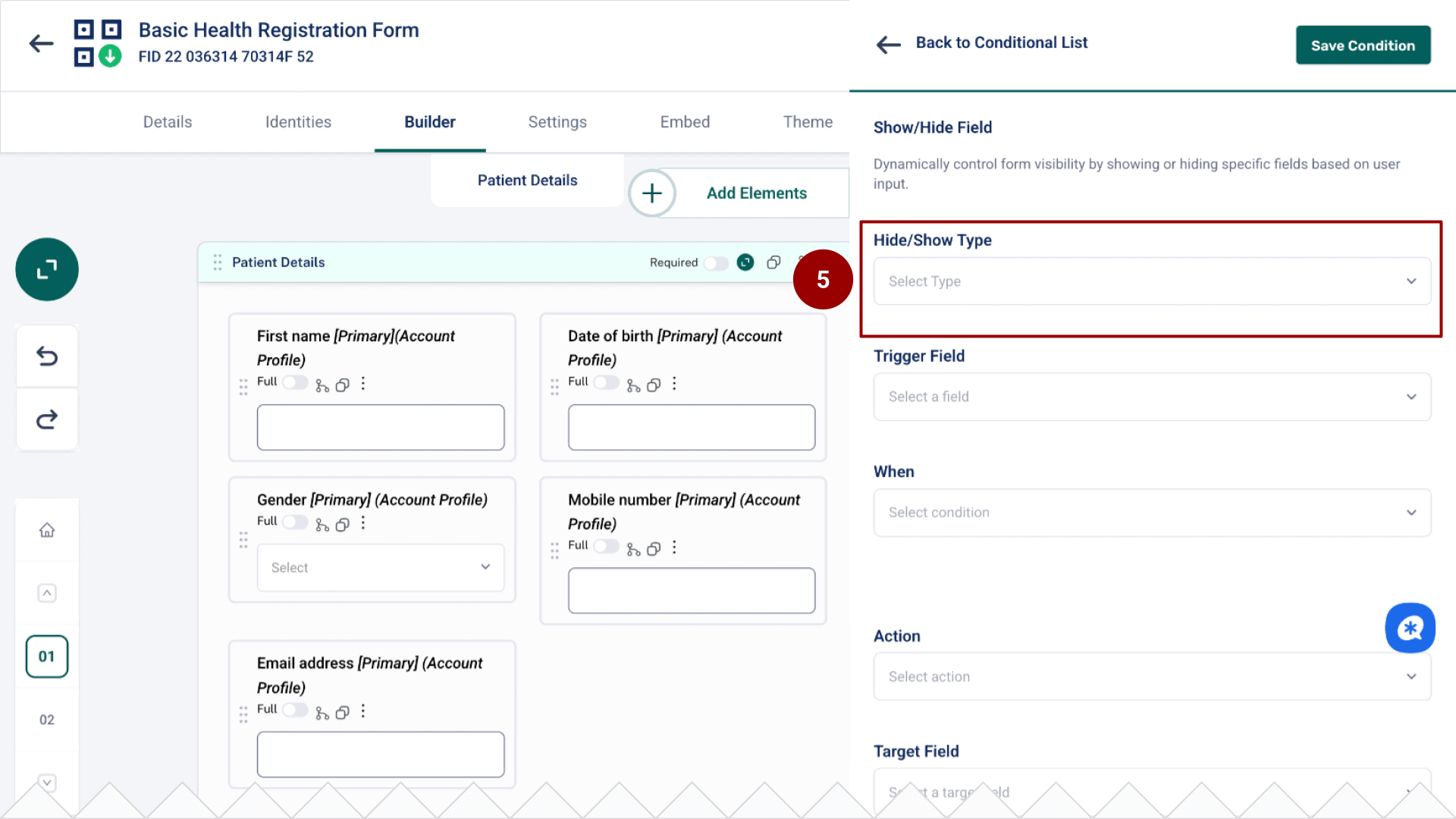
Set Hide/Show Type.
Step 3: Pick the trigger
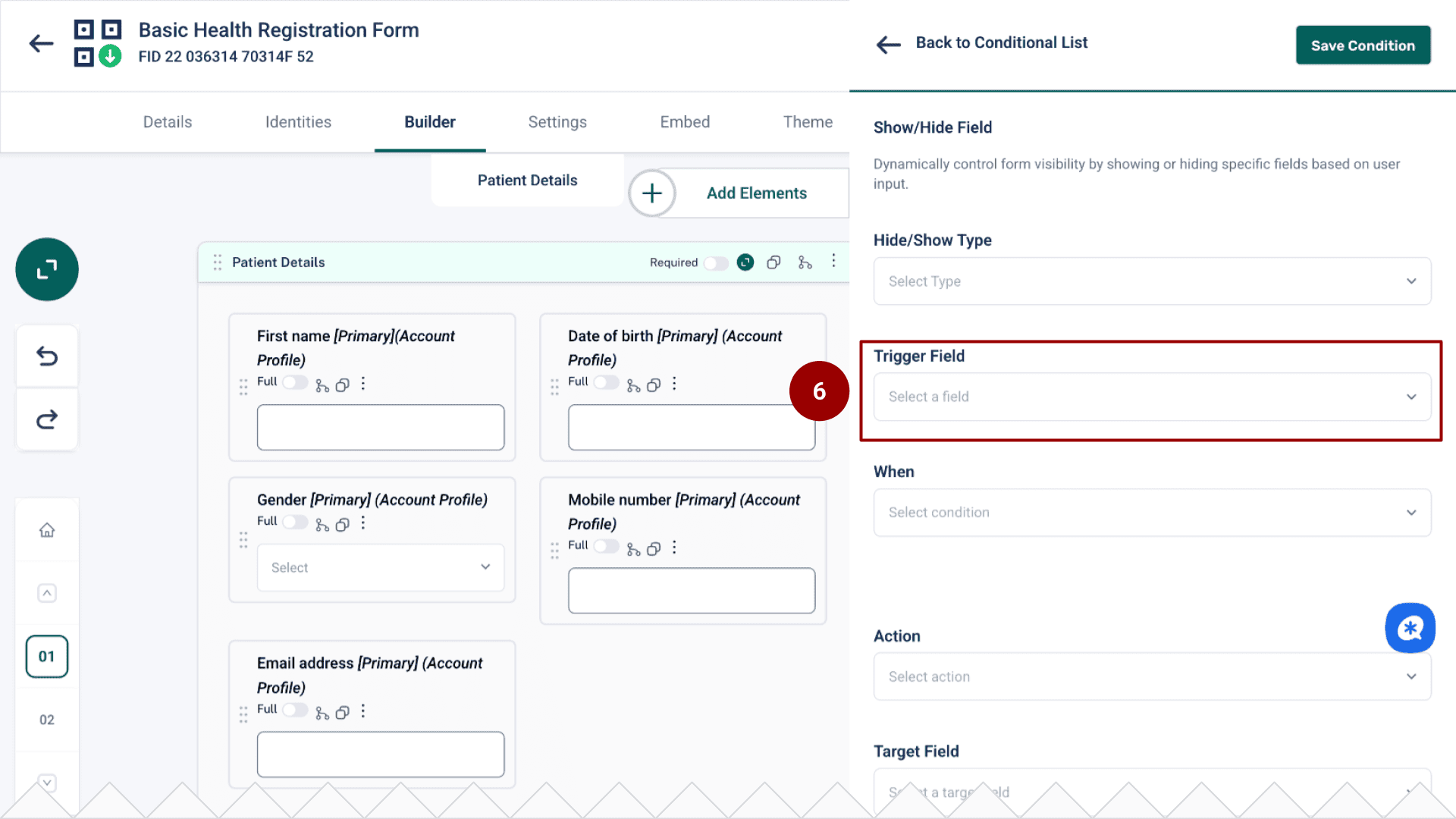
Select the Trigger Field whose value will drive the rule (e.g., “Do you have other children at this school?”).
Step 4: Define the condition
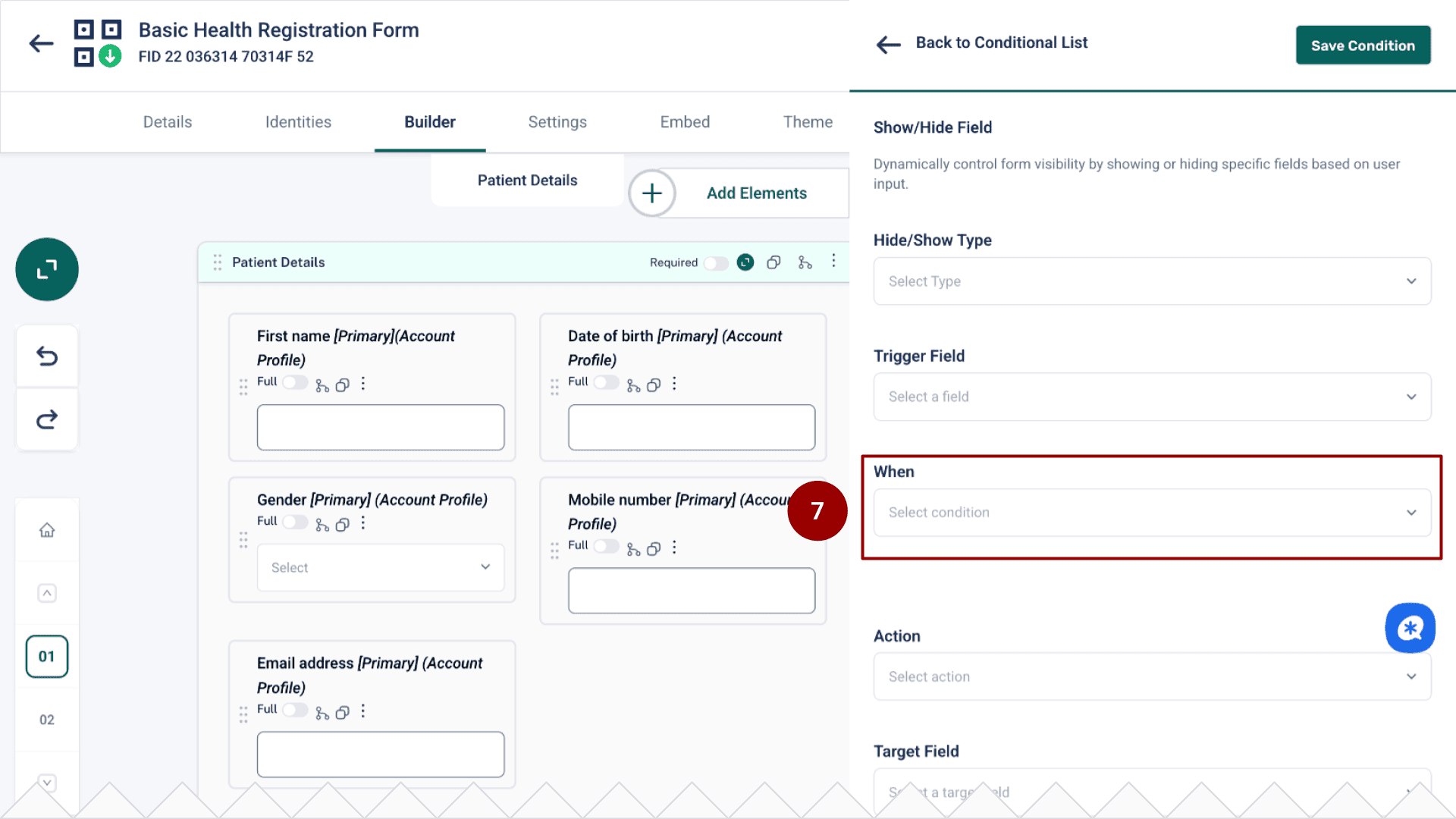
Under When, choose how Paxform should evaluate the trigger’s value:
Equals — exact match (text, number, single-select).
Greater than / Less than — numeric or date comparisons.
Is Empty / Is Not Empty — checks for any entry.
Is One Of — pick one or more options (Radio/Dropdown/Multi-select).
If shown, enter the Value(s) to compare against. Example: for a Radio field choose 'Is One Of' → set 'Value = No.'
Step 5: Choose the action
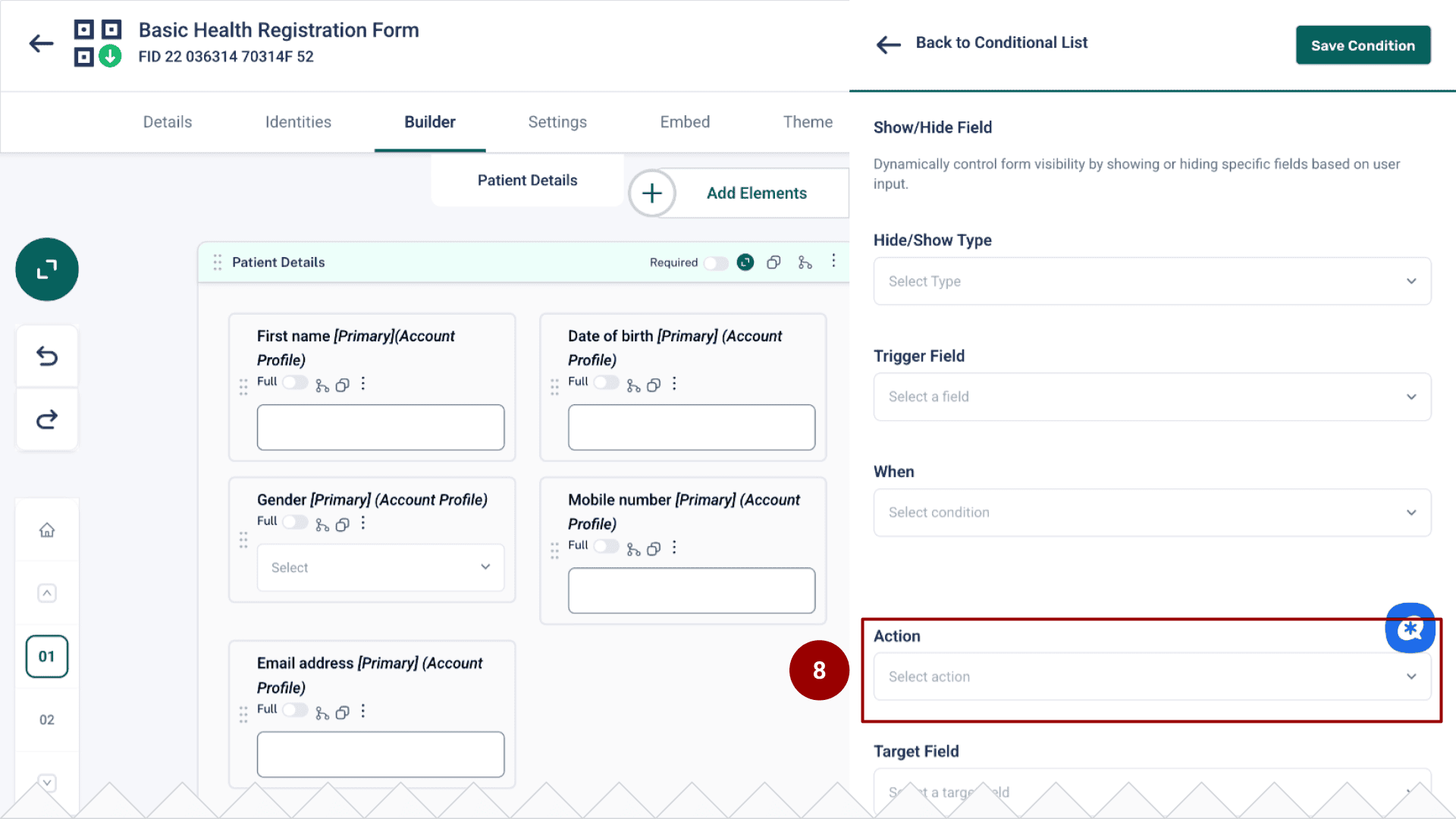
Set Action to Show or Hide.
Step 6: Select the target
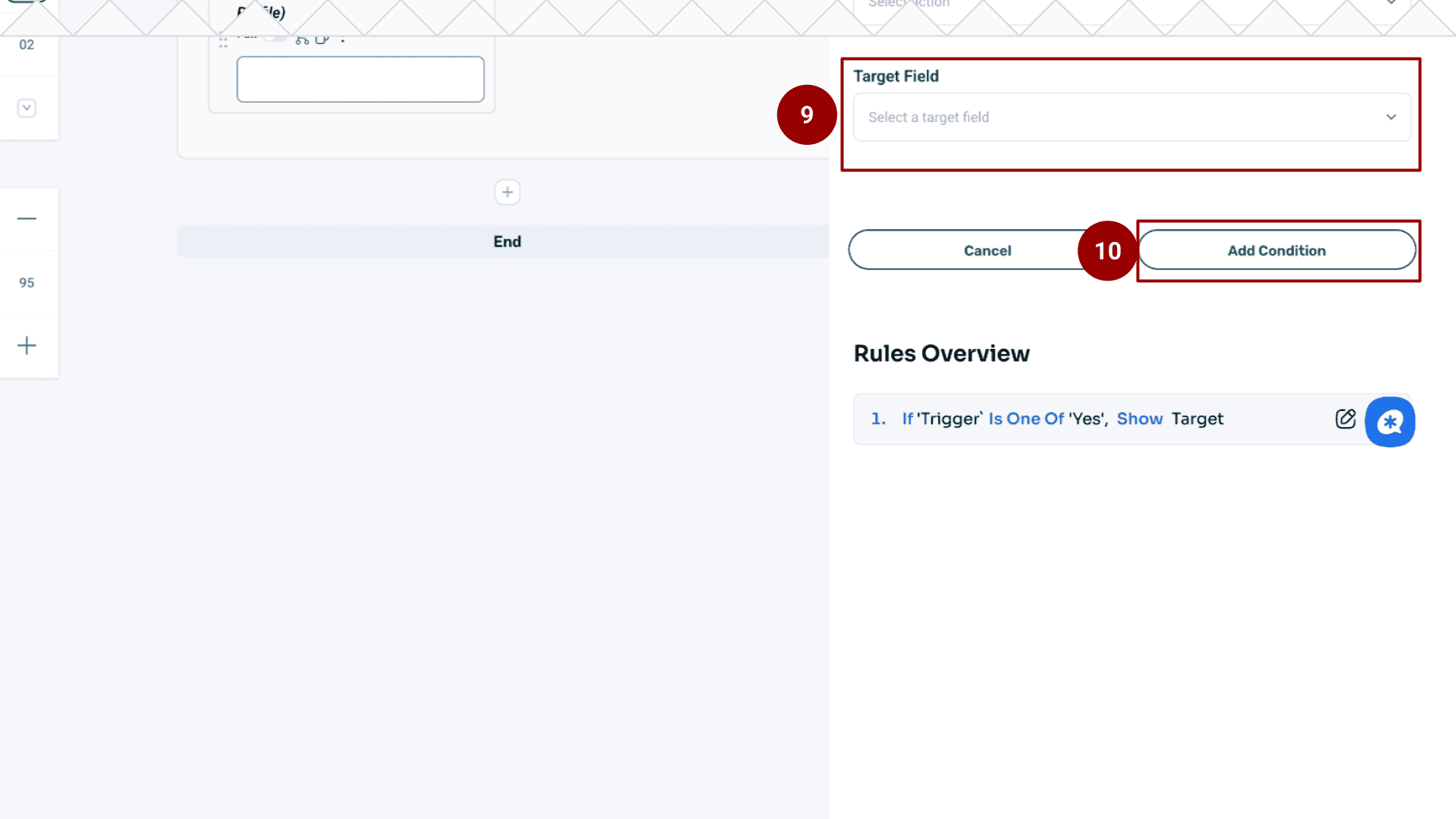
Choose the Target Field/Group you want to show or hide when the condition is met.
Click ‘Add Condition’.
Step 7: Save and Test
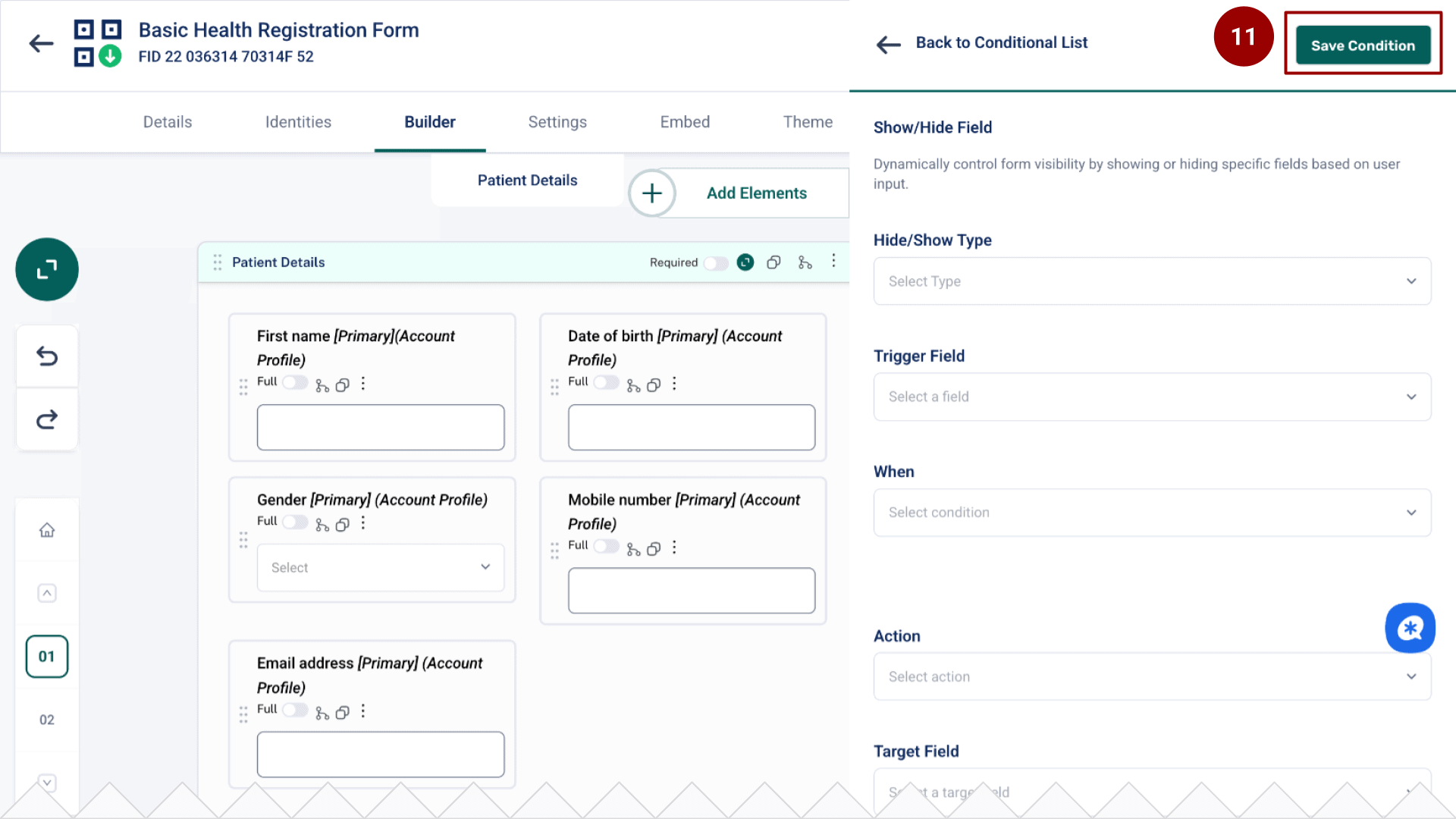
Click Save Condition.
Use Builder Preview to test and confirm the target appears or disappears as expected.